1🚀 Create your account and log in
Everything starts with your account.
- Press Log in at the top of this website. The app opens on the sign-in form.
- New here? Press Create account instead. Enter your name, e-mail and a password, or choose Sign up with Google.
- After signing in you land on Albums. The main menu has Albums, Edit, Requests, Messages, Favorites, Archive, My Website and Trash.
- Forgot your password? Press Forgot password? on the sign-in form and follow the e-mail.
On a phone you can add the app to your home screen from your browser menu, so it opens like any other app.
2⬆️ Upload your photos
Put your work into albums, so it is easy to find and share.
- In Albums, press New Album, give it a name (for example “Bridal 2026”) and press Create Album.
- Open the album and press Add Photos (or Upload photos). Choose photos from your phone or computer, or drag them in.
- Wait for the progress to finish. Thumbnails are made for you.
- Tap a photo to open the big viewer. Use the arrow keys or swipe to move through the album.
RAW files work too. Cretweb shows the largest JPEG preview stored inside each RAW file.
3🗂️ Keep your library tidy
Favourites, archive, trash and search.
- Mark the photos you love as favourites. They are collected under Favorites.
- Move work you are not using to Archive. It stays safe, but is out of the way.
- Deleted a photo by mistake? Open Trash and restore it.
- Looking for one photo? Use the search box and type part of the file name.
Keep an eye on the storage meter so you know how much space is left.
4🔗 Share an album with a client
A private link: your client needs no account.
- Open the album and press Share. A Share link appears with Copy and Open buttons.
- Open Share settings to set an expiry date, allow or block downloads, allow or block a ZIP of the whole album, and add a text watermark.
- Copy the link and send it by WhatsApp, e-mail or message.
- Your client opens the link, taps the photos they like and can write a short note (up to 500 characters) on each chosen one, then submits.
- You see their choices in Requests and get an e-mail and a message in Messages. Open the album’s Client comments to read every note, and export the list as a CSV file.
- Open Activity to see how often the album was opened, downloaded and which photos were chosen most.
Need the client to change their mind? You can reopen their selection from the album.
5🎨 Edit a photo
Adjust light and colour, crop, and save.
- Select a photo and press Edit (or open Edit in the main menu and choose photos).
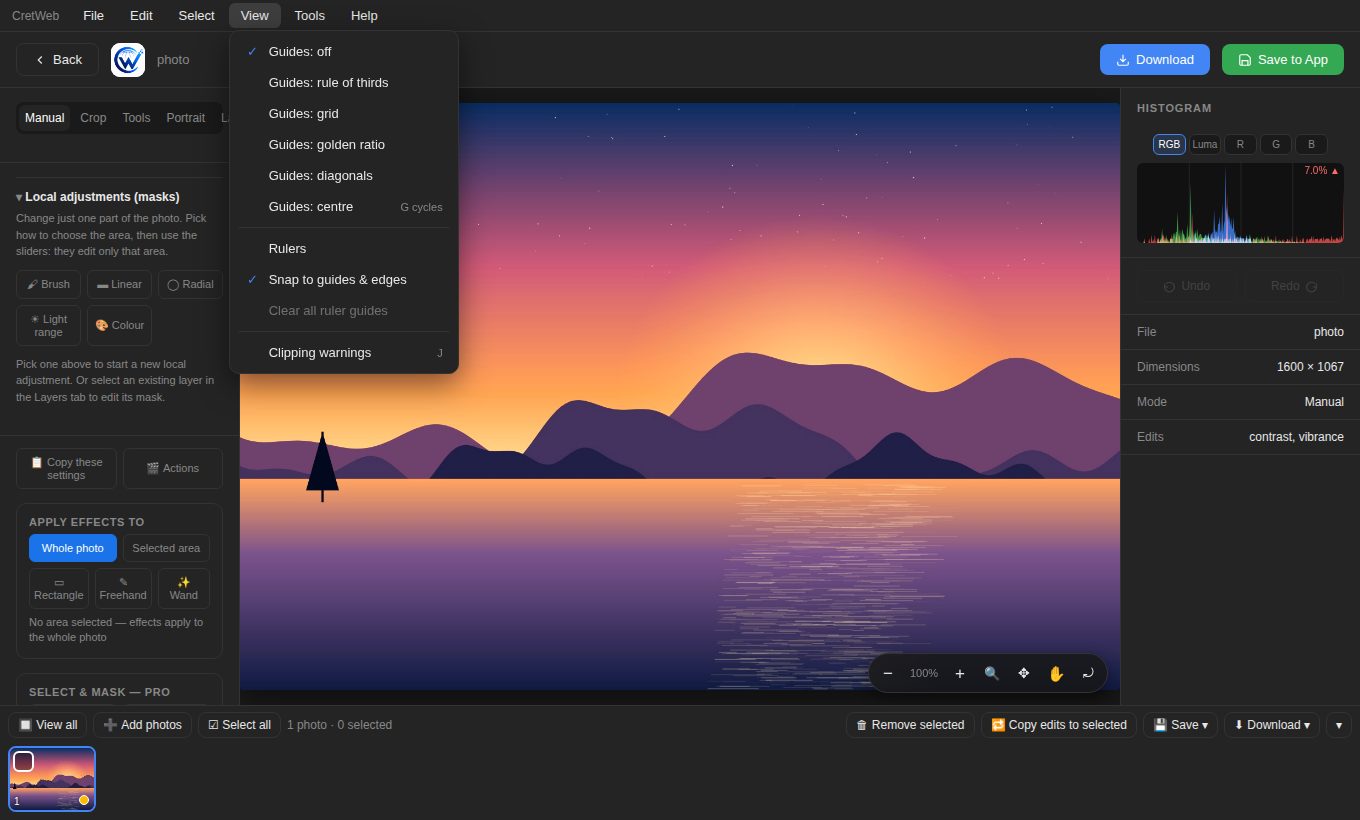
- In the Manual tab, move the sliders: exposure, contrast, highlights, shadows, vibrance, temperature and more. Watch the histogram on the right.
- Use the Crop tab to crop, straighten or rotate.
- Press Before / after (menu Edit) to compare with the original at any time. Undo and Redo are in the same menu.
- Happy? Press Save to App to keep an edited copy, or Download to save a file to your device. Your original is never overwritten.
Every command is in the menu bar at the top: File, Edit, Select, View, Tools, Help. Open View for guides, rulers, snap and clipping warnings.
6✨ Retouch a portrait
Smooth skin and fix small flaws, naturally.
- Open the photo and go to the Portrait tab.
- Use Skin Retouch Pro and increase smoothing a little at a time. Texture is kept, so skin does not look plastic.
- Remove blemishes with the dark spot remover, or the clone, heal and spot tools in Tools.
- Brighten eyes and teeth with the whitening tools.
- Compare with Before / after and lower the amount if it looks too strong.
Retouching works on its own layer, so you can fade or remove it later.
7📋 Edit many photos at once
Do a whole shoot in minutes.
- Tick several photos in an album, then press Edit. They open together with a photo strip along the bottom.
- Edit the first photo until it looks right, then press Copy these settings and apply them to the other photos you tick.
- For a repeatable routine, open Actions: record your steps (adjust, resize, sharpen, watermark, format), name the set and run it on the whole selection with a naming template.
- Save the selected or all edited photos as new copies.
The run shows progress and creates a report you can download as a CSV file.
8🧱 Add text, logos and layers
Branding and creative work.
- Open the Layers tab and add a text layer, an image or logo, a shape or an adjustment layer.
- Move, resize and rotate it directly on the photo. Change opacity and blend mode.
- Paint a mask on a layer to show or hide parts of it.
- For curved text, use the Pen tool (menu Tools), draw a path, then choose Text on this path.
Need the same logo on every photo? Put it on the first photo and use Copy these settings.
9🌐 Build your website
Turn your best albums into a site, as an individual or a business.
- Open My Website from the main menu.
- Fill in Your Name, a Username (it becomes part of your website address), a Tagline, a short Bio, and your Contact and Phone Number.
- Pick a theme, a layout and a design that suits your style, and choose the albums to show.
- Optionally add Packages & pricing, Testimonials, Our Values, a Website logo and a Watermark, and switch on Booking requests.
- Add your Search & sharing (SEO) title and description so people can find you.
- Press Publish. The page shows Live with your address and an Open button. Share the link.
- Open Visitors any time to see who is looking at your website.
Individual? You can ignore the business options. They stay folded away unless you open them.
10🏷️ Use your own domain
An address like yourname.com.
- In My Website, open Custom domain and enter the domain you own.
- Cretweb shows the exact DNS records to add. Enter them at the company where you bought the domain.
- Press the connection check. It tells you whether the domain, the www version and HTTPS are working.
- DNS changes can take some time. Check again later if it is not ready.
11🖨️ Print, colour and Photoshop files
Get the colours right on paper.
- Open the photo in the editor and choose File → Print & colour….
- Pick a colour profile (sRGB, Display P3, Adobe RGB or your own file), the file format, dpi and paper size.
- Turn on the soft proof to see which colours the printer cannot reproduce.
- Save the file with the profile embedded. The same dialog can Export PSD and Import PSD files.
PSD files keep raster layers, blend modes, opacity and visibility. Text, shapes and adjustment layers are flattened.
12⌨️ Shortcuts and tips
Move faster.
- Press ? in the editor to see all shortcuts, or open Help → Keyboard shortcuts.
- Ctrl+Z undo, Ctrl+Y redo, Ctrl+S save to the app.
- G cycles composition guides. J shows clipped shadows and highlights.
- Open Edit → History & checkpoints to jump back to an earlier moment of your edit.
- On a touch screen, pinch to zoom and drag to move around the photo.
13🛟 If something does not work
Quick fixes.
- Refresh the page. After an update, clear your browser cache once so you get the newest version.
- Cannot see an album on your website? Check that the album is chosen for the website and that you pressed Publish.
- A client says the link does not open? Check the expiry date in Share settings.
- An edit looks too slow on a huge photo? Close other tabs, or work on a smaller copy first.
- Still stuck? Read the FAQ or contact the person who runs your Cretweb site.